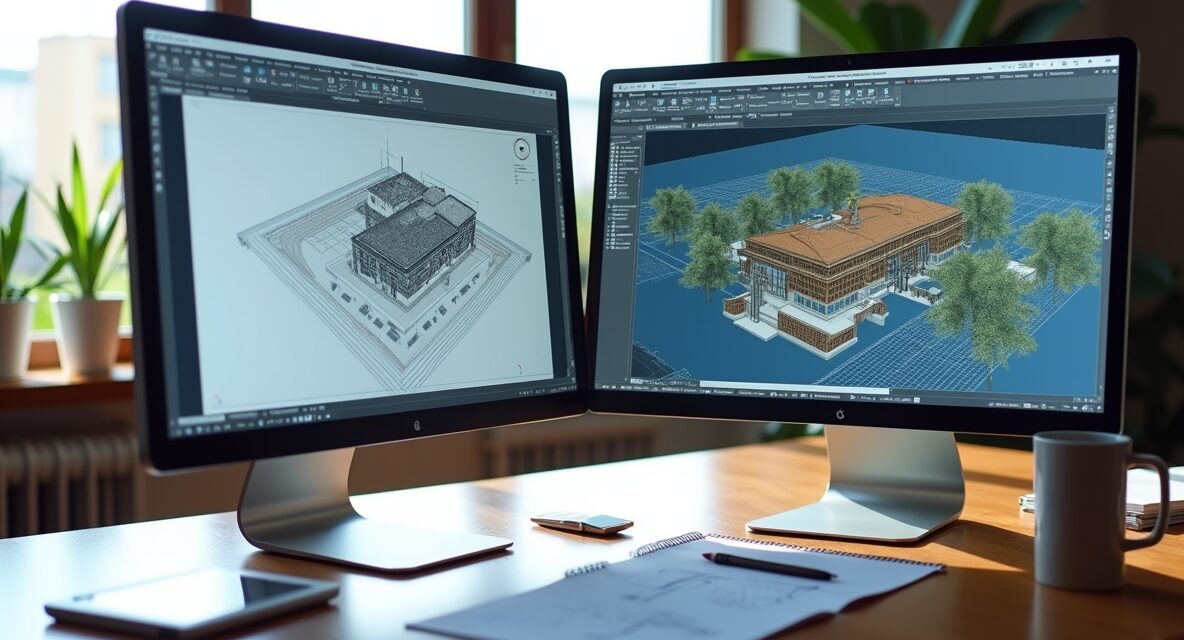
From AutoCAD to Revit: Transitioning Your Workflow
As the AEC (Architecture, Engineering, and Construction) industry continues to shift toward more integrated and collaborative design methods, many professionals are moving from traditional 2D drafting tools like AutoCAD to Building Information Modeling (BIM) platforms like Revit.
If you’re familiar with AutoCAD and considering a transition to Revit, this article will guide you through the shift — highlighting what changes, what carries over, and how to streamline your workflow.
🧭 Why Transition from AutoCAD to Revit?
While AutoCAD excels in precise 2D drafting and general design tasks, it lacks the intelligent building data, coordination tools, and 3D modeling capabilities that Revit offers. Here’s why many firms are making the switch:
- Data-rich modeling with intelligent building components
- Real-time coordination between architectural, structural, and MEP disciplines
- Automatic documentation updates when models change
- Enhanced visualization and presentation tools
- Better collaboration through cloud platforms like BIM 360
🔄 Key Differences Between AutoCAD and Revit
| Feature | AutoCAD | Revit |
|---|---|---|
| Workflow Type | 2D (and some 3D) drafting | Full 3D BIM modeling |
| Objects | Lines, arcs, blocks | Parametric components (walls, doors, roofs, etc.) |
| File Types | .DWG | .RVT |
| Data Management | Minimal | Data-rich, embedded information |
| Coordination | Manual | Integrated and dynamic |
Understanding these core differences helps set realistic expectations for your transition.
🛠️ Tips for a Smooth Transition
1. Think in 3D, Not 2D
In Revit, you’re not just drawing lines — you’re creating a digital building model with smart components that understand how they relate to each other (walls connect to floors, windows cut into walls, etc.).
Tip: Start by modeling a simple building to learn how Revit’s elements interact in 3D.
2. Use Families, Not Blocks
In AutoCAD, you rely on blocks for repeated content. In Revit, the equivalent is families — reusable parametric objects like doors, windows, furniture, etc.
Tip: Explore Revit’s built-in family library and learn how to load or customize your own.
3. Master the Project Browser
Instead of managing hundreds of separate files and layers, Revit organizes everything inside a Project Browser — your one-stop control panel for views, sheets, schedules, and families.
Tip: Use filters and naming conventions to keep views organized as your project grows.
4. Use Worksharing for Team Collaboration
Revit allows multiple users to work on the same project simultaneously through worksharing, making coordination much more efficient than passing DWGs back and forth.
Tip: Learn the basics of creating a central model and syncing regularly with the team.
5. Leverage Schedules and Smart Tags
In Revit, information like door counts, material areas, and room finishes can be automatically extracted into schedules. If the model changes, the schedule updates instantly.
Tip: Practice creating a room schedule or door schedule as a starting point.
🔁 What You Can Carry Over from AutoCAD
Good news: your existing skills still matter! Here’s what transfers well:
- Precision drafting: You’ll still use coordinates, snaps, and constraints.
- Layer and object organization: Similar concepts exist in Revit with categories and visibility settings.
- Command knowledge: Many keyboard shortcuts in AutoCAD have Revit equivalents — and you can customize your own.
Plus, Revit supports importing DWG files, so you can use your old CAD drawings as a base or reference.
⏳ Learning Curve: What to Expect
Yes, there’s a learning curve. But the long-term payoff is worth it:
- Expect to take 2–3 weeks of regular use to get comfortable.
- Use free tutorials, YouTube series, or Autodesk’s learning hub to reinforce your skills.
- Start with small, low-risk projects before moving your entire workflow to Revit.
🎯 Final Thoughts
Transitioning from AutoCAD to Revit is more than switching software — it’s shifting from 2D drafting to intelligent modeling and collaboration. While it might feel overwhelming at first, Revit’s benefits in speed, accuracy, and coordination will quickly become clear.
Whether you’re an architect, engineer, or contractor, embracing BIM through Revit is a smart move for staying competitive and future-ready.
💡 Bonus Tip:
Still using both programs? That’s okay! Many firms use AutoCAD for detailing or site plans and Revit for building models. Find the workflow that works best for you as you transition.
Would you like a PDF version, a series of follow-up tutorials